WordPress is a completely-online system that lets you to build a website without any technical know-how. You log in to a "Control Panel" page on your website, and from there, you can create pages and make changes to your site.
You need to have bought web hosting and a domain name before you can do this step. Go back to the previous step if you don't have hosting and a domain name yet.
WordPress is ideal for blogs, because it's so easy to make a new page/post, and because WordPress will order and organise these posts for you. (For instance, by displaying the latest post at the top of the main page.) WordPress also allows comments by visitors.
WordPress also caters for normal non-blog sites, composed of pages.
It's very easy to do the basic things in WordPress, but more complex changes are difficult. For instance, you can edit some basic features of your site's layout, but anything more than that will require knowledge of website code.
If you're happy with a basic website, you don't want to learn web design, and you don't require any specific text/colour/graphical scheme, then choose WordPress.
There is no additional cost to use WordPress.

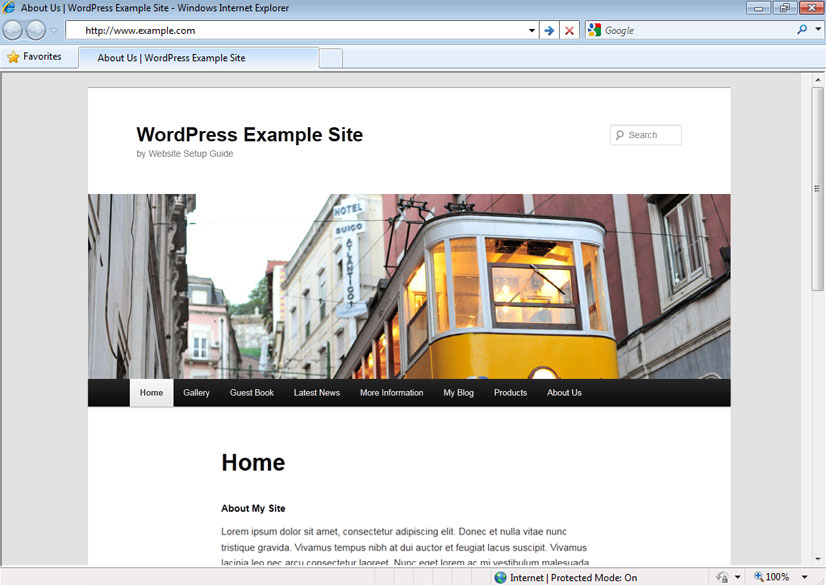
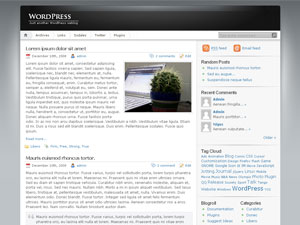
This is a screenshot of a typical WordPress website, using the default TwentyTen graphical theme. You can choose a much fancier theme if you like, but I recommend sticking with TwentyTen. It's clean and simple, and is easy to edit. You can very easily replace the header picture and change the background colour.

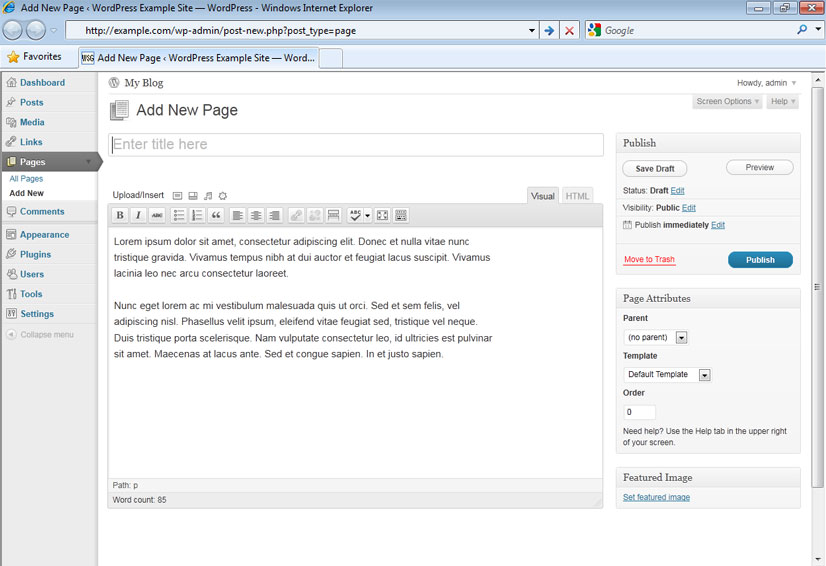
This is a screenshot of WordPress's Control Panel.
To get to the Control Panel, you go to a special WordPress Login page on your website, and type in your password.
Everything is done from the Control Panel. At the left is a list of all the settings you can change, and things you can do.
The user is currently looking at the Add New Page page.
These first three steps are the minimum necessary to get a WordPress blog/site online. Just do them in order, and you'll have your own website.
| WORDPRESS | |
|---|---|
| Installing WordPress |
If you're not with FatCow, you'll need to refer to your web host's documentation, to install WordPress. If you've just signed up, you'll be looking at the Control Panel, on the FatCow website. You can do all the important stuff from here.
If you visit your site, and it doesn't work, then your domain name is probably still "propagating". Your internet company doesn't know it exists yet. In the meantime, visit your site at yourusername.fatcow.com (replace yourusername with the user name you chose when signing up with FatCow.) If you're with another web host, change the "fatcow" to whatever your host is. If something goes wrong with the installation, try again, or click the Live Chat button at the top, and ask for help with setting up WordPress. |
| Log in to the WordPress control panel |
This is your WordPress control panel. You'll use it to build your site. At any time, you can click your site's name, at the top left, to see your site. |
| Add or edit a page |
If you have lots of pages, it's best to organise them into a hierarchy, by using the "Parent" drop-down box, at the right of the screen. (For instance, you'd make a main Recipes page, and then for each recipe, you'd make a new page, and use the drop-down box to set the main Recipes page as its Parent.) |
Now that your website is online, just keep adding more pages.
This chart lists more basic things you'll likely want to do, once your website is online.
| WORDPRESS | |
|---|---|
| Some important settings to change |
|
| Change the header picture |
|
| Add a link |
Widgets are menus, search boxes, lists, and any other little items you can put on your site. If they're in one of the dark grey Widget Areas on the right hand side of the screen, then they're on your site. If not, they're not on your site.
Note that there has to be one widget in the Primary Widget Area. If you don't put one in there, it will show the default widgets. (So if you don't want any widgets, just put the Text widget in there, to stop the default widgets appearing.) |
| Problems? | If you're having trouble with any of these instructions, or you want to do something that isn't described on this site, or you can't get your site to look how you want it to, then please go to the More Information page, and contact me. I'll be able to help. |
You've reached the end of the three steps to getting a website onto the internet. However, there are lots of extra things you can do, to make your new website a success. Read about them in the More Information section >>
If you've just been reading through this guide, and you feel like you're now ready to start creating your own website, then click here to sign up for web hosting and a domain name. Then come back here.